DJI Enterprise AERONEX CAD Integration

Public Safety / Emergency Response

FlightHub 2 Integration Workflow with CAD System

A customer-safe workflow deck for connecting incident triggers, dispatch decisions, coordinates, mission status, and telemetry backflow between FlightHub 2 and a neutral CAD System / PSIM / Command Center.
On-Premises / AIO first Event trigger Task dispatch Coordinate & status backflow
DJI DFR Eyes on Scene official video poster
Official DFR visual context: emergency response workflows turn incidents into aerial situational awareness.

Integration Positioning

CAD initiates the incident workflow. FlightHub 2 controls the drone workflow.

The integration should preserve operational responsibility: CAD/PSIM owns incident intake and dispatch context; FlightHub 2 owns drone task preparation, operator confirmation, remote monitoring, and aircraft mission control.

Incident source

Emergency call, alarm system, sensor event, or PSIM rule creates a location-based response requirement.

Drone task layer

FlightHub 2 selects the appropriate dock, prepares the workflow, and keeps operators in the approval loop.

Dispatch visibility

CAD receives mission status, location, video link context, and operational updates for shared awareness.
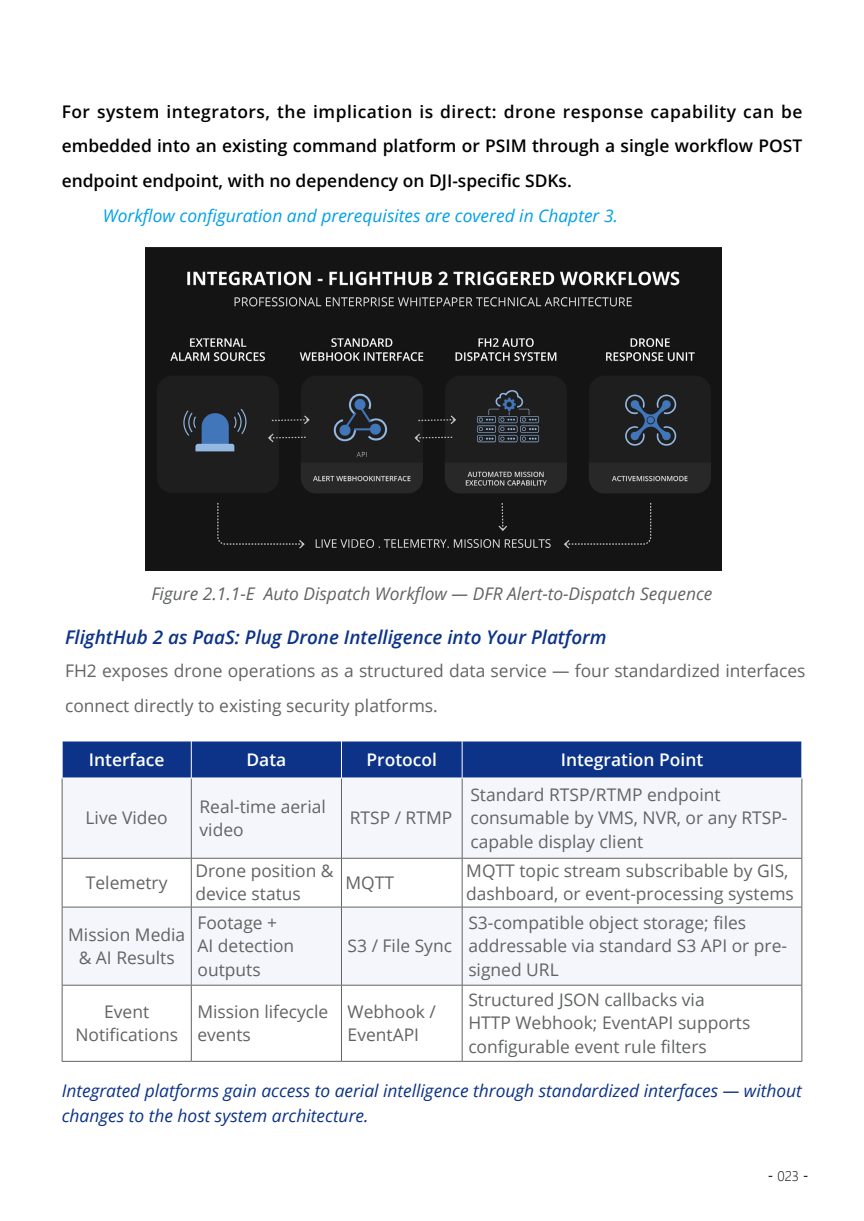
DFR CAD workflow from whitepaper
Whitepaper reference: incident coordinates can trigger a controlled drone response and return context to dispatch.

Source basis: DJI Enterprise Dock as First Responder page and the supplied DFR whitepaper.

System Topology

CAD / PSIM -> FlightHub 2 -> Dock / Drone -> CAD / GIS / Command Center

Trigger

CAD System

Creates incident ID, coordinates, priority, and response context from dispatch or alarm workflow.

Bridge

Integration Layer

Validates payload, maps fields, and passes a clean request to FlightHub 2.

Operations

FlightHub 2

Prepares dispatch workflow, recommends dock resources, and waits for operator confirmation.

Response

Dock / Drone

Launches, navigates to coordinates, captures aerial context, and streams mission status.

Backflow

CAD / GIS

Receives location, status, video reference, and mission outcome for incident-level awareness.

Auto Dispatch Workflow

Automation prepares the response; the operator confirms the response.

For customer-facing discussion, position automated dispatch as a controlled workflow. The system can recommend or prepare the drone response based on coordinates and rules, but final dispatch approval, manual takeover, and operational decisions stay with authorized users.

Auto-recommend

FlightHub 2 can suggest the nearest suitable dock or route based on the incident location.

Manual assignment

An operator can select the dock, confirm the task, or adjust the route according to policy.

Predefined actions

Arrival actions can include camera orientation, photo capture, panorama, video, or observation tasks.

Manual control

Authorized operators can intervene when the incident condition changes or safety requires it.
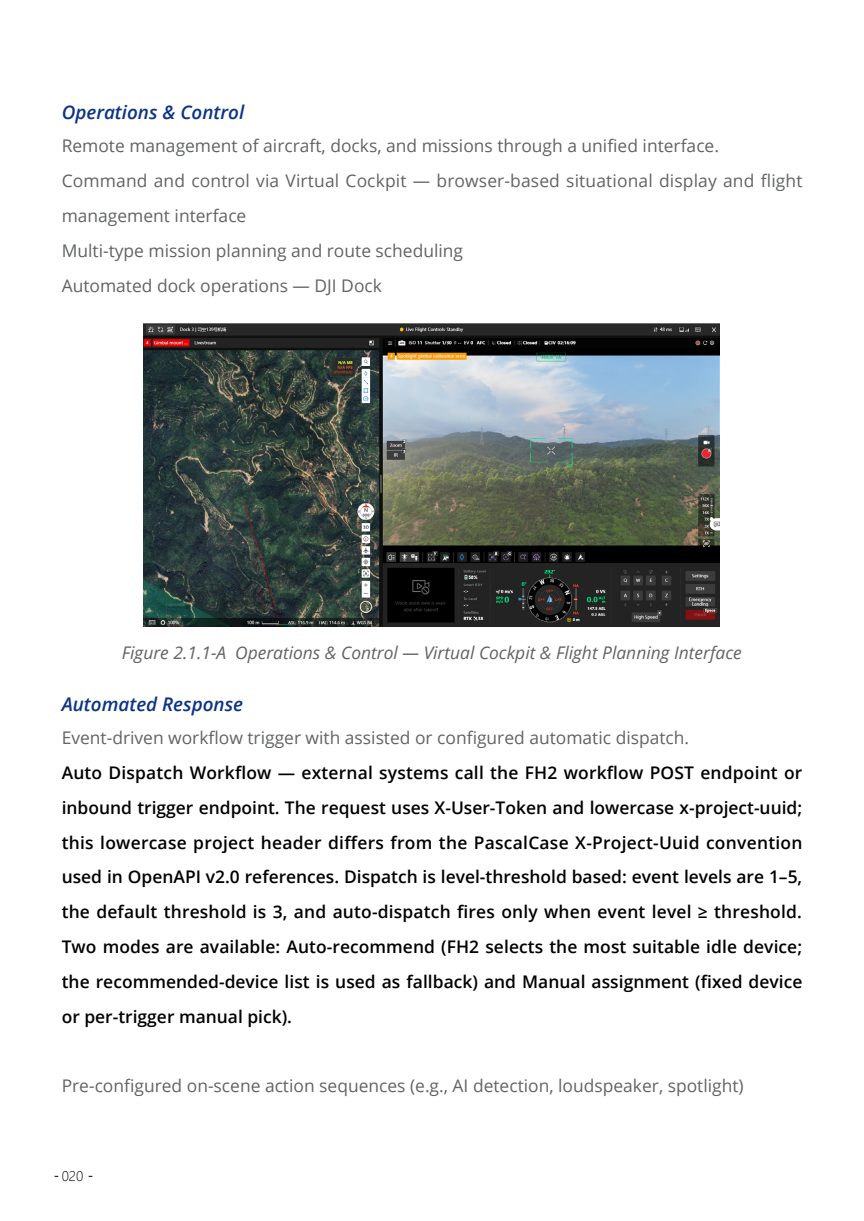
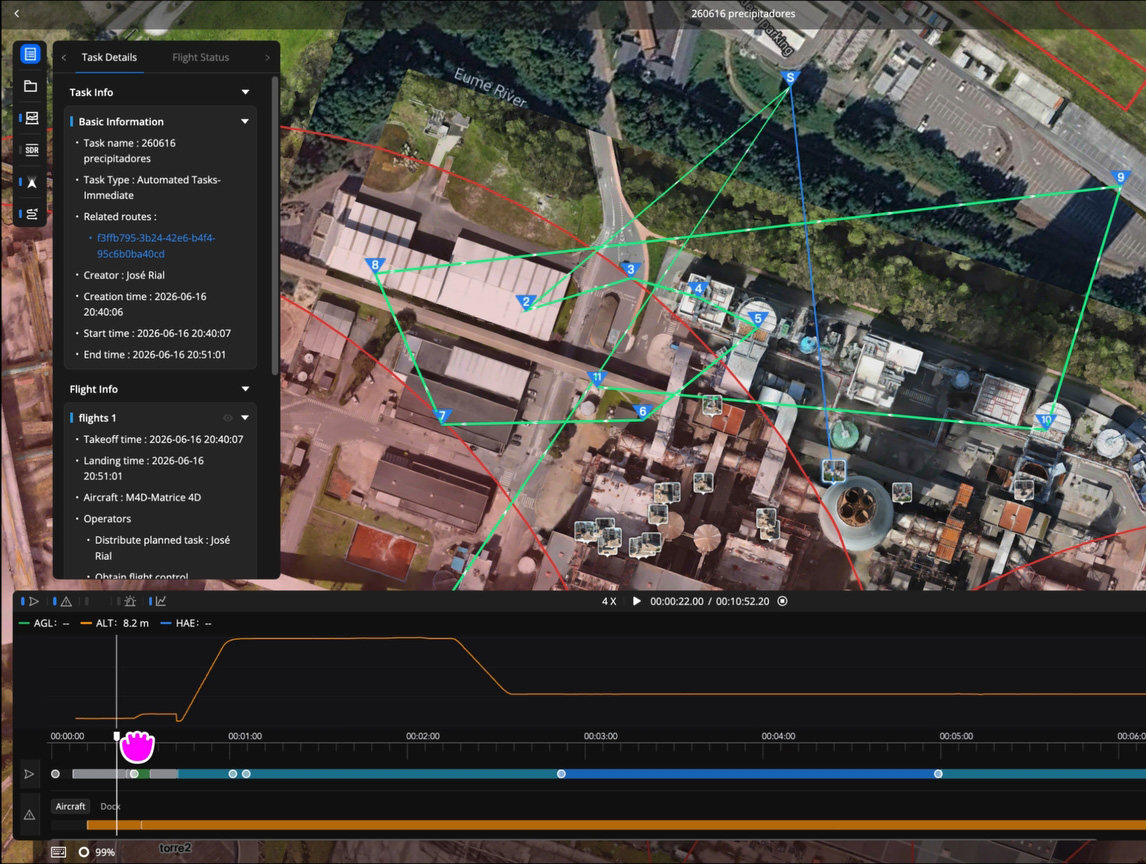
Auto dispatch workflow reference
Whitepaper reference page: automated dock operations, virtual cockpit, and workflow-based dispatch.

End-to-End Flow

One incident becomes a traceable drone response.

01 Intake

Incident created

CAD receives call, alarm, or PSIM event with location and priority.

02 Normalize

Fields mapped

Integration layer checks coordinates, incident type, and dispatch rules.

03 Prepare

Task staged

FlightHub 2 prepares a dock-based response and highlights operator action.

04 Confirm

Human approval

Operator confirms the drone task and monitors the flight path.

05 Observe

Live scene view

Video, photos, and status provide early situational awareness.

06 Close

Records linked

Mission outputs and status updates are attached back to the incident workflow.

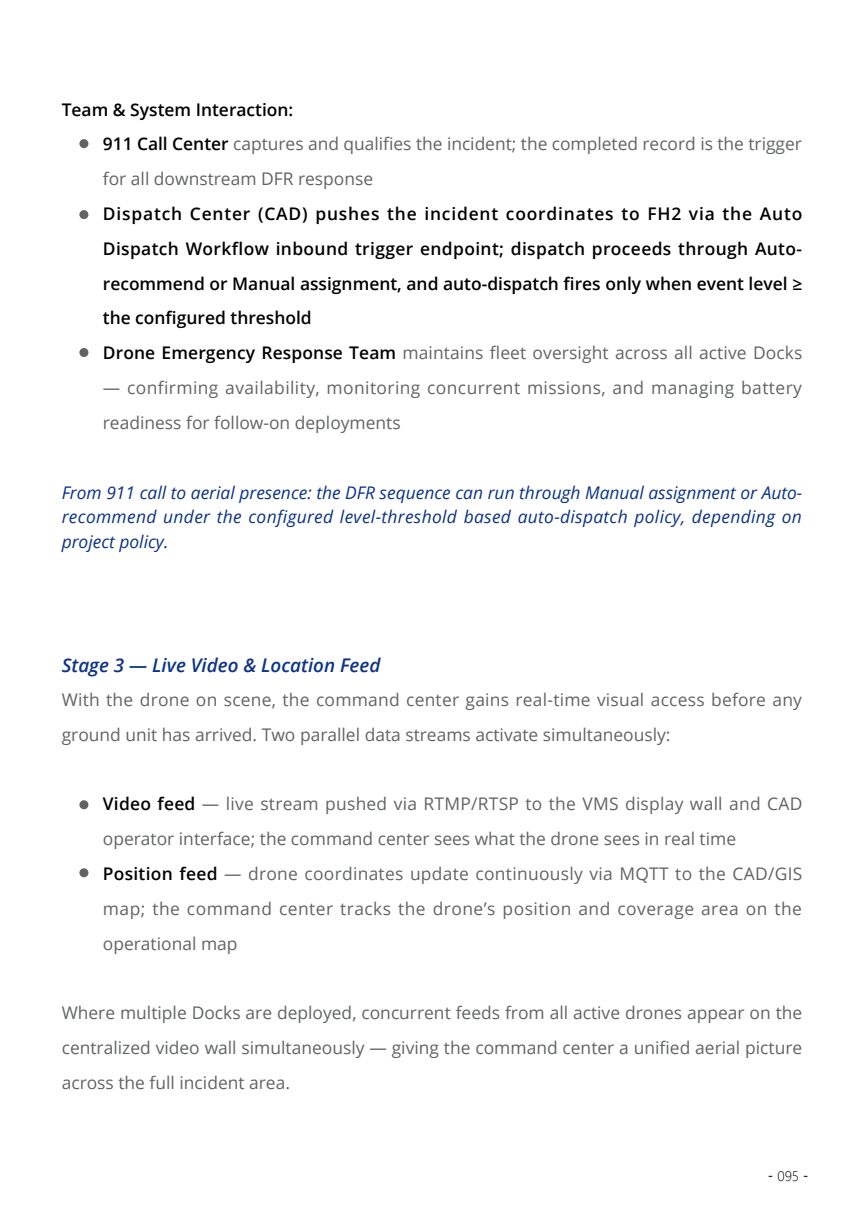
Open integration domains reference
Integration domain mapping: live video, telemetry, media, and event notifications.

Coordinate & Status Backflow

CAD needs mission context, not just a launch event.

The value of CAD integration is the closed loop: incident coordinates trigger the drone task, and the drone mission returns position, state, and evidence context back into dispatch or GIS views.

Aircraft position

Current drone location can be visualized in CAD/GIS or a command map.

Mission state

Dispatchers can see task accepted, en route, arrived, observing, returning, or completed.

Video reference

CAD can carry a neutral reference to the live stream or command-center viewing surface.

Telemetry Architecture

Use MQTT or middleware translation depending on the customer's platform maturity.

Some CAD, GIS, and PSIM environments can subscribe to telemetry directly. Others need a middleware bridge to translate drone telemetry into WebSocket, database, message queue, or platform-native formats.

FlightHub 2

Publishes drone position, task state, device state, and event context.

Middleware Bridge

Maps topics, filters fields, transforms formats, and controls what downstream systems receive.

CAD / GIS / PSIM

Displays operational state on incident views, maps, or command dashboards.
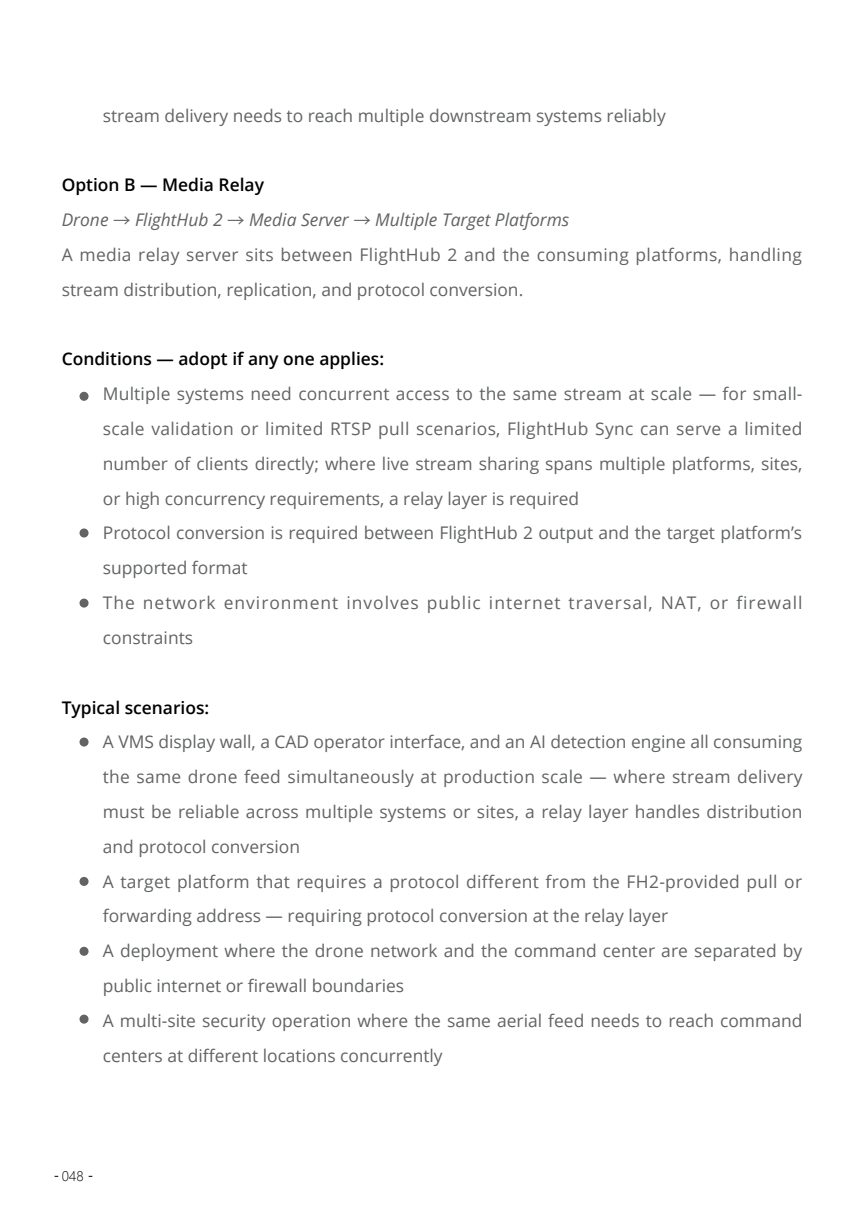
Telemetry integration reference
The whitepaper recommends bridge patterns when legacy platforms do not consume FlightHub 2 telemetry directly.

Risk Controls

CAD-triggered drone dispatch needs validation gates.

The deck should reassure IT and operations teams that integration is not blind automation. Each event should pass validation, dispatch rules, operator confirmation, and audit logging.

Event authenticity

Validate that the trigger comes from an authorized CAD, PSIM, or alarm source.

Coordinate quality

Reject or hold events with missing, stale, or obviously incorrect coordinates.

Dispatch limit

Prevent excessive duplicate tasks caused by repeated alarms or unstable integrations.

Human control

Keep operator approval and manual takeover clearly defined.

Audit trail

Record who confirmed the task, when it launched, and what mission outputs were generated.

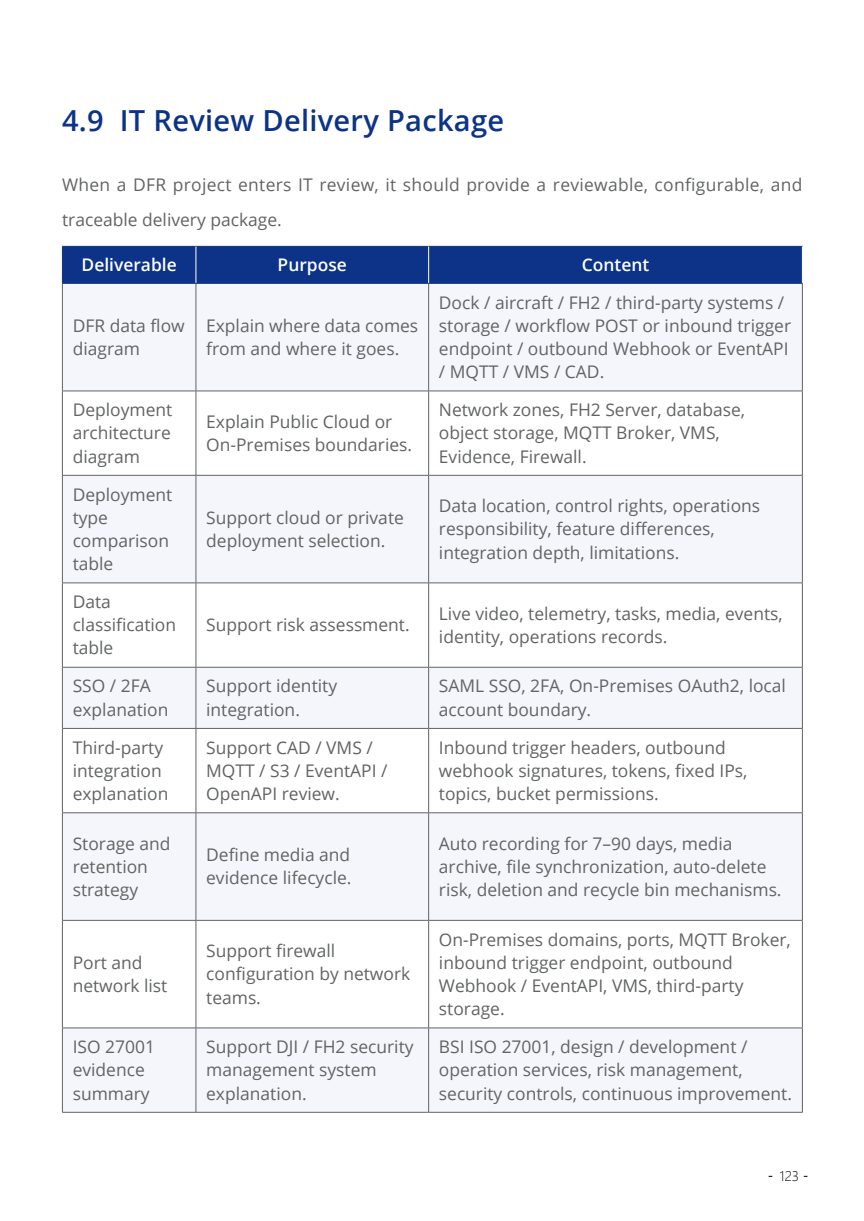
IT review package reference
For IT approval, prepare data-flow diagrams, deployment architecture, data classification, and third-party integration descriptions.

Deployment Path

Start with an AIO validation path, then move to On-Premises for production scale.

AIO pilot

Validate CAD trigger, operator confirmation, live view, and status backflow in a controlled environment.

On-Premises production

Place FlightHub 2, integration bridge, and customer systems under the required network and security boundary.

Neutral naming

Use CAD System, PSIM, VMS Platform, and Command Center in external material.

No sensitive details

Do not publish endpoint paths, authorization headers, keys, internal ports, or customer network values.

Workshop Checklist

What to confirm before a CAD integration workshop.

Incident fields

Incident ID, type, priority, latitude/longitude, address, caller context, and update frequency.

Dispatch rules

Which incidents can trigger drone preparation, which require manual review, and which are blocked.

Operator roles

Who approves dispatch, who monitors the flight, and who can manually control or terminate the mission.

Backflow fields

Drone location, mission state, dock status, video reference, media record, and completion result.

Middleware owner

Confirm whether the customer, system integrator, or AERONEX ecosystem partner provides the bridge.

IT package

Prepare architecture diagram, data flow, integration description, access model, and security responsibilities.

FlightHub 2 DFR CAD Integration